Free Online Speaker Sound Test| Left & Right Stereo Channel Tester
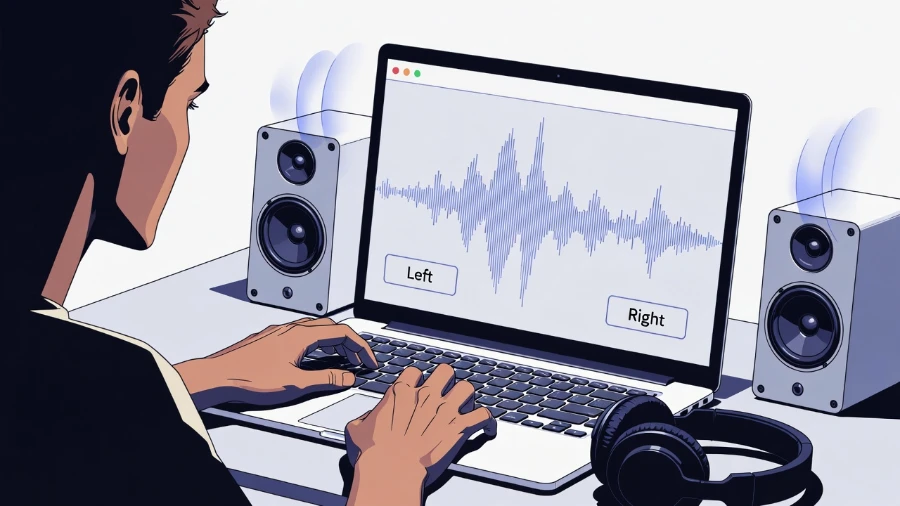
Test your phone speaker to check if both left and right audio channels are working properly.
If your speaker sounds low or distorted, you can use our Fix My Speaker tool to clean it instantly..
Speaker Sound Test Tool
Test left & right audio channels instantly – no install required
How to Use This Speaker Test
- Click Test Left Speaker to check the left audio channel—sound should play on the left side only.
- Click Test Right Speaker to check the right channel—sound should play on the right side only.
- Use Auto Alternate to switch between left and right every second and verify stereo balance.
- Click Full Stereo Test Tone to play 1000 Hz through both channels at the same time.
- If both sides play clearly at equal volume, your speakers are working correctly.
What's a Speaker Sound Test?
Quick Answer
A speaker sound test plays audio tones through your speakers to verify they work correctly. It checks both stereo channels, detects volume imbalance, identifies distortion, and catches hardware faults. A browser-based speaker tester runs on any device for free—no download required—and takes under two minutes.
A speaker tester sends a clean test tone—a pure audio signal at a fixed frequency—through each speaker. You listen and compare the left and right outputs. Problems show up immediately: crackling, silence on one side, or uneven volume levels.
The history of stereo audio begins with inventor Alan Dower Blumlein, who developed stereophonic sound in the 1930s. True stereo separates audio across two distinct channels—left and right—creating directional audio that gives music physical space and depth. When both channels work correctly, you hear rich stereo imaging where instruments and voices appear to come from different locations. When one channel fails, everything collapses to a thin, off-center mono experience.
What Are Stereo Speakers?
Stereo speakers come in pairs. Each speaker carries one audio channel — left or right. They play slightly different audio simultaneously to create stereo separation: the sensation that sound is spread across a physical stage rather than coming from a single point.
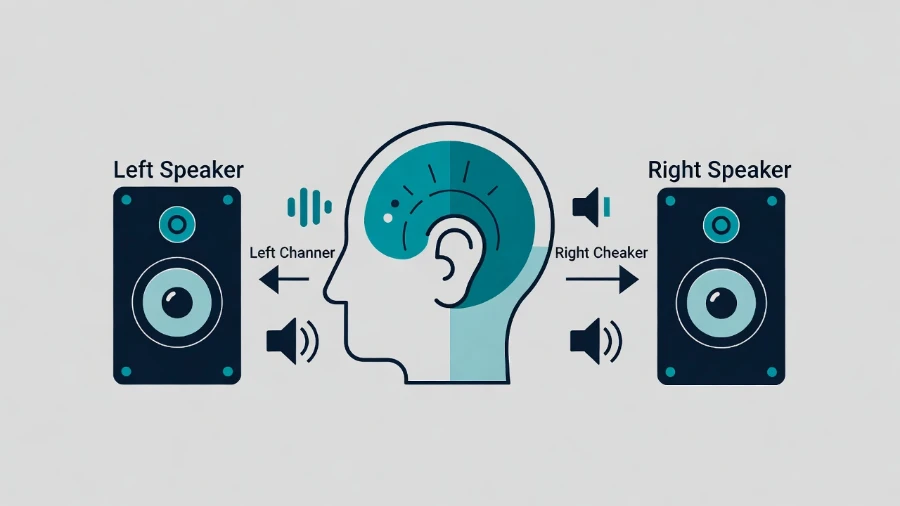
Diagram showing how stereo speakers send separate audio signals to the left and right channels.
A single speaker produces mono sound — the same signal from one location. Two stereo speakers spread that audio across a soundstage, adding depth, width, and realism. Most smartphones, laptops, headphones, and earbuds produce stereophonic sound by default.
During a stereo audio test, both channels are evaluated independently. The left channel test plays audio only through the left speaker. The right channel test does the same for the right side. Equal output on both sides, with no distortion, confirms your stereo speakers are functioning correctly.
Why Test Left and Right Speakers?
Stereo channel problems are more common than most people expect. They often develop gradually — a tiny volume imbalance here, an occasional crackle there—until the issue becomes impossible to ignore. Running a quick left-right speaker test catches problems early.
- One speaker sounds noticeably louder than the other
- Music feels like it only comes from one side
- Voices in movies drift slightly off-center
- One earbud or headphone cup produces no sound at all
- A speaker crackles or buzzes on one side only
- Stereo imaging sounds narrow, flat, or collapsed to mono
A quick stereo sound test catches every one of these issues in under a minute. It gives you a clear result: both channels work, or one doesn’t. No guessing. No trial and error.
How to Test Phone Speakers Online
You can run a complete speaker sound test on any iPhone or Android smartphone directly in your browser. No app download is required. This speaker check online works worldwide on all mobile devices.
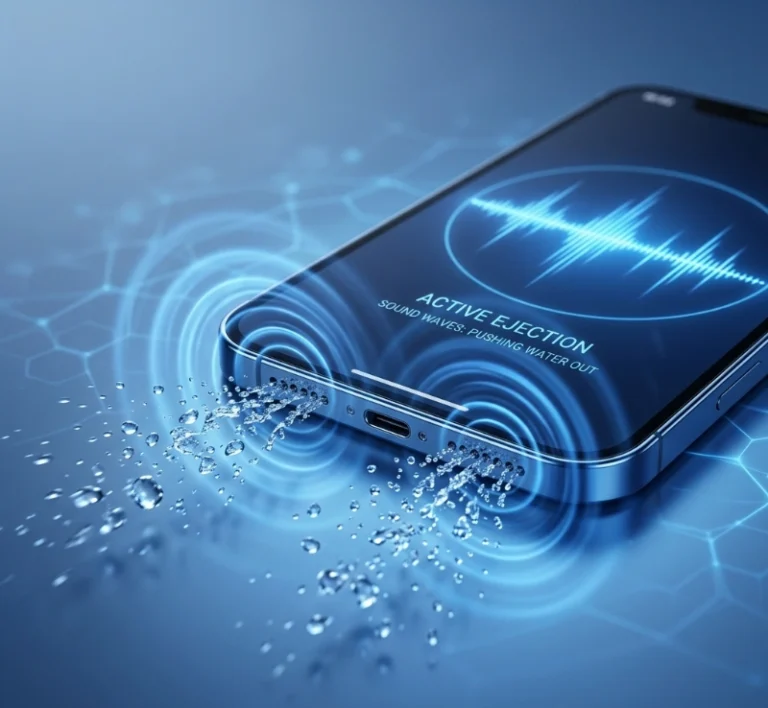
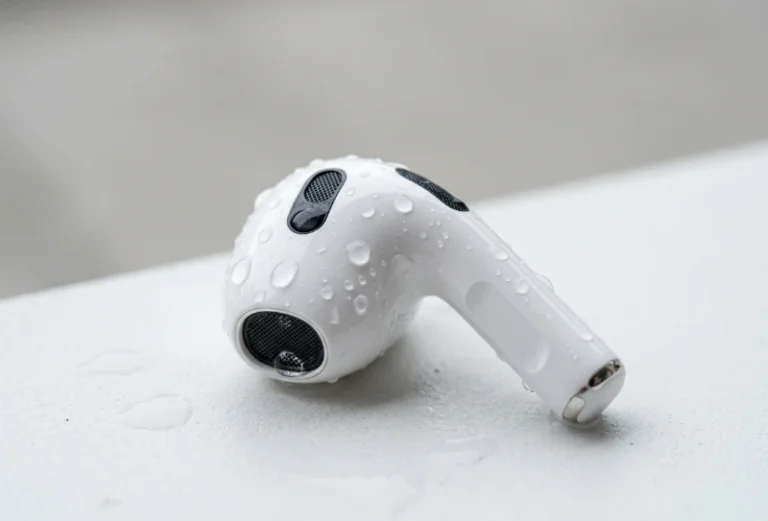
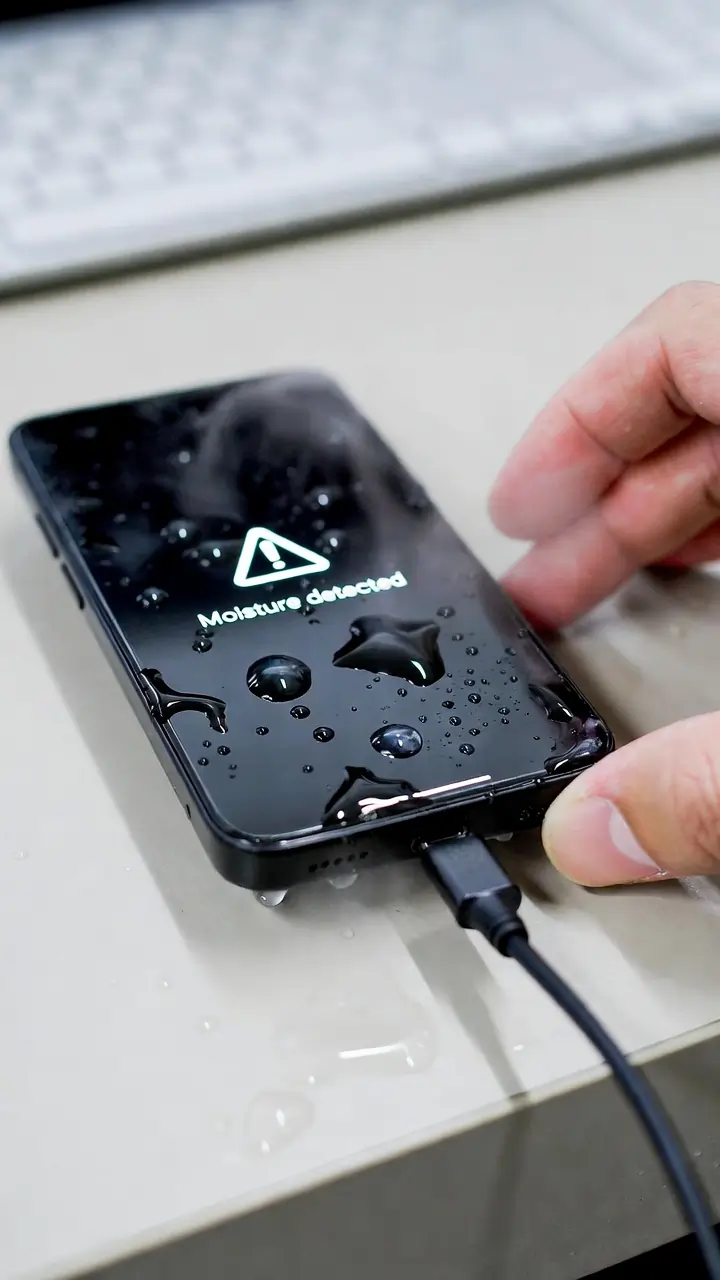
Phone speakers are physically close together, so stereo separation can feel subtle on built-in speakers. For the most accurate left-right speaker test on a phone, plug in wired earbuds or headphones before running the test. If your phone speaker sounds muffled or distorted after liquid exposure, you can also try tools to remove water from iPhone speakers before testing audio output.
iPhone speaker balance fix
Go to Settings → Accessibility → Audio/Visual. Confirm the balance slider sits exactly in the center. A small drift to either side can noticeably mute one channel during playback.
Android speaker balance fix
Open Settings → Sound → Balance. Move the slider to the center position. Also verify that Mono Audio is turned off—this setting collapses both stereo channels into a single mono output, disabling stereo separation entirely.
How to Test Laptop and Desktop Speakers
The browser-based speaker check online at the top of this page works identically on Windows, Mac, and Linux. No plugins, no downloads, and no software installation is required.
Windows—fix audio balance
Right-click the speaker icon in your taskbar. Select Open Sound Settings → Device Properties → Additional Device Properties → Levels → Balance. Set both L and R channels to the same value. While you’re there, confirm the correct playback device is selected as the default audio output.
Mac—fix audio balance
Go to System Settings → Sound → Output. The balance slider appears at the bottom of the panel. Center it completely. Even a single notch off-center can reduce perceived volume on one channel by 30–40%, making one speaker seem much quieter than the other.
Devices Compatible With Speaker Testing
This browser-based speaker tester is compatible with most devices that have a modern browser and an audio output. The 1000 Hz test tone plays through whichever device your system has selected as the default audio output. For external speakers, Bluetooth speakers, or USB audio — set them as the default playback device before running the test.
| Device | Supported | Notes |
|---|---|---|
| Smartphones (iOS & Android) | ✔ Yes | Browser-based, no app needed |
| Laptops (Windows, Mac, Linux) | ✔ Yes | Works in all modern browsers |
| Desktop PCs | ✔ Yes | Built-in or external speakers |
| Headphones (wired & wireless) | ✔ Yes | Best for precise channel separation |
| Bluetooth speakers | ✔ Yes | Set as default output device first |
| Earbuds (wired & true wireless) | ✔ Yes | Ideal for accurate stereo testing |
| External USB speakers | ✔ Yes | Select as playback device in settings |
| Smart TVs (with browser) | ✔ Yes | Open this page in the TV browser |
Common Speaker Problems
Running a speaker sound test quickly reveals the most common audio faults. Use this table to identify your specific problem and jump straight to the fix. If dust or debris is causing distortion, using a dedicated ear speaker cleaner sound tool can help dislodge particles before you run a full channel test.
| Problem | Likely Cause | Fix |
|---|---|---|
| No sound at all | Muted system or wrong output device selected | Sound settings → check playback device + volume |
| Only left speaker plays | Balance shifted left, or right speaker failure | Audio balance slider → center it |
| Only right speaker plays | Balance shifted right, or left speaker failure | Audio balance slider → center it |
| Crackling or popping noise | Outdated audio driver or physically damaged cone | Update audio driver, or replace speaker |
| Very low volume | System or app volume set too low | Check system volume and per-app mixer |
| Distortion at high volume | Speaker clipping or blown cone | Reduce volume, or replace speaker |
| Bluetooth plays mono only | Device audio profile locked to mono | Disconnect and re-pair the Bluetooth device |
| Hiss or static from speakers | Electrical interference or grounding issue | Check cables, try different USB port or wall outlet |
What to Do If the Test Fails
Bad test results don’t always mean broken hardware. Work through these steps systematically—most audio failures have a simple software fix that takes under a minute. If you’re still experiencing persistent low-volume issues after following these steps, visit our guide on how to fix speaker volume problems for a deeper walkthrough.
Fixing One Speaker Only Issues
If the stereo audio test shows only one channel playing, the fix is usually a single settings change. Start with the simplest solution and work forward.
- Center the balance slider: this resolves most one-speaker issues instantly
- Inspect speaker wiring: a loose cable on one side cuts that channel completely; unplug and firmly reconnect
- Re-pair Bluetooth devices: Bluetooth can lock audio into mono; re-pairing resets the profile and restores stereo
- Clean the headphone jack: debris inside the 3.5mm port causes intermittent channel dropout; use compressed air to clear it
- Disable Mono Audio: on phones and tablets, this toggle merges both stereo channels into one output
If none of these steps restore the missing channel, use a tone generator to play a pure 1 kHz test tone through that channel at maximum volume. Place your ear close to the speaker. Any faint response means partial function remains—the driver may be failing. Complete silence at any volume indicates a physical hardware failure requiring repair or replacement.
Advanced Audio Tests
Once the basic left-right speaker test above confirms both channels are working, you can run more specialized diagnostics to evaluate audio quality in detail. These tests go beyond simple channel verification and measure how well your speakers actually perform. Running a thorough speaker sound test at this level helps identify issues that only appear under specific conditions.
| Test Type | What It Checks | What Failure Looks Like |
|---|---|---|
| Frequency response test | Plays tones from 20 Hz to 20,000 Hz | Speaker drops out at certain frequencies |
| Dynamic range test | Audio at very low and very high volume | Distortion at either extreme |
| Distortion test | Pure 1 kHz sine wave — listen for clarity | Buzzing, rattling, or breakup in the tone |
| Stereo imaging test | Audio that pans left to right smoothly | Movement sounds uneven or stuck to one side |
| Speaker calibration | Room measurement + EQ compensation | Sound imbalanced for the listening environment |
A frequency response test reveals which parts of the audio spectrum your speakers reproduce accurately and which they struggle with. Budget speakers often lose bass below 100 Hz and treble above 16 kHz. A dynamic range test checks whether your speakers handle both delicate soft passages and loud peaks without distorting. The distortion test confirms the speaker cone is physically intact — a cone that has warped or partially separated from the voice coil produces distinctive buzzing that is easy to identify once you know what to listen for.
Frequently Asked Questions
Conclusion
Testing your speakers takes under two minutes and costs nothing. Start with the left-right speaker test at the top of this page. Confirm both channels produce equal, clean audio at the same volume level. Then work through balance settings if anything sounds off.
A browser-based speaker check online works on every device — phones, laptops, desktops, Bluetooth speakers, headphones, and earbuds. No download. No setup. Compatible with all modern browsers. Works worldwide.
If the test reveals a problem, use the troubleshooting tables in this guide to find the exact fix. Most channel imbalance and audio issues are resolved in under sixty seconds once you know where to look.