How to Make Your Phone Vibrate (Android, Samsung & iPhone)
Vibration mode is one of those features most people use every day. You slip your phone into your pocket before a meeting. You set it to silent at school. You want to feel notifications without disturbing anyone around you. But not everyone knows exactly where these settings live — or why vibration might stop working.
This guide covers how to make your phone vibrate on Android, Samsung Galaxy, and iPhone. Whether you want to turn on vibration for calls, fix a broken vibration motor, or customize haptic feedback, you’ll find the answer here. You can also explore more free tools and guides on the Fix My Speaker Cleaner homepage.
How to Make Your Phone Vibrate (Quick Steps)
On Android:
- Open Settings
- Tap Sound & Vibration
- Enable vibration for calls and notifications
On Samsung Galaxy:
- Open Settings
- Tap Sounds and Vibration
- Select Vibrate under Sound Mode
On iPhone:
- Open Settings
- Tap Sounds & Haptics
- Enable Vibrate on Ring and Vibrate on Silent
- Flip the Ring/Silent switch on the left side of your phone
For most users, the fix takes under 30 seconds.
What Does Vibrate Mode Do on a Smartphone?
How Vibration Alerts Work
Knowing how to make your phone vibrate starts with understanding the hardware. Your phone contains a small vibration motor (sometimes called an eccentric rotating mass motor). When triggered, it spins rapidly to create that familiar buzz. On newer devices, haptic feedback replaces or supplements this motor. Haptics create more precise, controlled vibrations — like the subtle tap when you press a button on an iPhone.
There are two main types of vibration systems found in phones today:
- ERM (Eccentric Rotating Mass): A small weighted motor that spins to create vibration. Common in budget and mid-range Android phones.
- LRA (Linear Resonant Actuator): A more precise system used in flagship phones. Provides sharper, more controlled haptic feedback.
When Vibration Mode Is Useful
Vibration mode is helpful in many daily situations:
- Meetings: Stay reachable without interrupting others.
- Classrooms: Feel notifications without making noise.
- Quiet environments: Libraries, cinemas, or religious settings.
- Pocket notifications: Feel calls and texts without looking at your screen.
- Accessibility needs: Helpful for users with hearing impairments who rely on physical alerts.
Quick Ways to Turn On Vibrate Mode on Any Phone
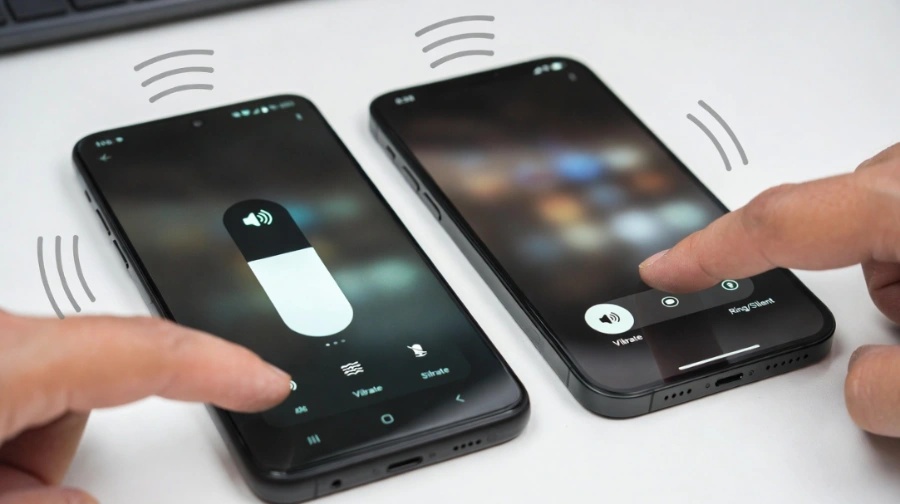
These shortcuts work across most devices and take just a few seconds.
Use Volume Buttons
On most Android phones, pressing the volume down button cycles through ring, vibrate, and silent modes. Keep pressing until you see a vibration icon on the screen.
On iPhone, use the physical Ring/Silent switch on the left side. Flip it toward the back of the phone to enter silent/vibrate mode. You’ll feel a short vibration confirming the switch.
Enable Vibrate Mode from Quick Settings
Swipe down from the top of your screen to open quick settings. Look for a sound mode icon — it may show a bell, a vibration symbol, or a speaker. Tap it to cycle through modes until vibration is active.
This is the fastest way to toggle vibrate mode without opening the Settings app.
Turn On Vibrate in Phone Vibrate Settings
Go to Settings > Sound (Android) or Settings > Sounds & Haptics (iPhone). From here, you can toggle vibration on for calls, notifications, and other alerts. This method gives you the most control over individual vibration options.
How to Make an Android Phone Vibrate
Android vibration settings are split between system-level controls and per-app notification settings. Here is how to enable both.
Enable Vibration for Calls
- Open Settings
- Tap Sound & Vibration
- Select Vibrate for calls
- Choose Always vibrate or Only when not in ring mode
Enable Vibration for Notifications
- Go to Settings > Apps
- Select the app you want (e.g., Messages)
- Tap Notifications
- Enable Vibrate
Repeat this for each app you want to receive vibration alerts from. Apps like WhatsApp, Gmail, and Messenger each have their own notification vibration toggle.
Adjust Android Vibration Intensity
On Android 12 and later (and many OEM versions), go to Settings > Sound & Vibration > Vibration Intensity. Slide the bar to your preferred strength for calls, notifications, and touch feedback separately.
Not all Android phones support independent intensity sliders — this depends on the manufacturer and Android version.
How to Make a Samsung Galaxy Phone Vibrate
Samsung Galaxy phones have their own vibration controls inside the Sounds and Vibration settings. The options go deeper than stock Android.
Turn On Samsung Vibrate Mode
- Open Settings
- Tap Sounds and Vibration
- Select Vibrate under Sound Mode
Enable Samsung Vibrate Mode from the Quick Panel
Swipe down twice to fully expand the quick panel. Tap the sound icon (bell shape) to toggle between sound, vibration, and mute. This is the fastest method on any Samsung device.
Change Samsung Vibration Strength
- Go to Settings > Sounds and Vibration
- Tap Vibration Intensity
- Adjust sliders for calls, notifications, and system haptics
Samsung Galaxy phones also let you set custom vibration patterns for contacts in the Phone app. Open Phone > Contacts, select a contact, tap Edit, then choose a ringtone and assign a custom vibration pattern.
By this point, you should know how to make your phone vibrate on most Android and Samsung devices. Next, let’s cover the iPhone.
How to Make an iPhone Vibrate
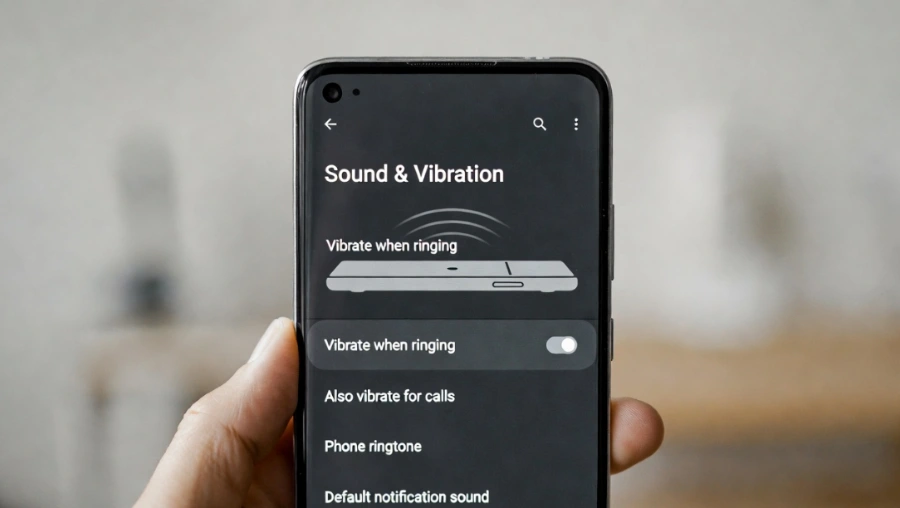
iPhone vibration is controlled through Sounds & Haptics settings and the physical Ring/Silent switch. Both need to be correctly set for vibration to work reliably.
Enable iPhone Vibrate Settings for Ring and Silent
- Open Settings
- Tap Sounds & Haptics
- Enable Vibrate on Ring
- Enable Vibrate on Silent
Both options should be turned on if you want vibration in all situations. If only Vibrate on Silent is enabled, your phone won’t buzz when the ringer is active.
Use the Silent Switch to Enable Vibration on Silent
Flip the small switch above the volume buttons on the left side of your iPhone. When orange is visible, silent mode is active. Your phone will vibrate for calls and notifications as long as vibration is enabled in Settings.
Note for iPhone 15 Pro and later: These models replaced the Ring/Silent switch with an Action Button. You can assign it to toggle silent mode via Settings > Action Button.
Apple devices use advanced haptic feedback through the Taptic Engine, which produces precise vibration alerts. You can learn more about these features in Apple’s official haptic and vibration settings documentation.
How to Customize Phone Vibration Settings
Change Vibration Patterns
Custom vibration patterns let you identify callers or apps by feel alone — without looking at your screen.
iPhone
- Go to Settings > Sounds & Haptics
- Tap Ringtone or Text Tone
- Select Vibration at the top
- Choose a preset or tap Create New Vibration to tap out a custom pattern
Android
Vibration pattern customization varies by device. On Samsung, go to Settings > Sounds and Vibration > Vibration Pattern to choose from preset options. Third-party apps can also create custom patterns per notification type.
Adjust Vibration Strength
On Android and Samsung Galaxy, use the Vibration Intensity sliders in Sound settings. On iPhone, vibration strength isn’t directly adjustable — but haptic intensity can be changed via Settings > Accessibility > Touch > Haptic Touch.
Accessibility Vibration Settings
Both Android and iPhone offer accessibility options for vibration:
- iPhone: Go to Settings > Accessibility > Touch for haptic options. You can also enable LED Flash for Alerts as a visual supplement.
- Android: Go to Settings > Accessibility > Vibration & Haptic Strength to configure vibration for calls, notifications, and touch interactions.
These settings are especially useful for users with hearing impairments or those who need stronger physical alerts.
How to Make Your Phone Vibrate Continuously
Using Vibration Apps
Apps like Vibration App or Strong Vibrator (available on Google Play) can trigger continuous or patterned vibration. These give you full control over how to make your phone vibrate on a schedule or loop. These are useful for physical therapy, sensory use cases, or testing your phone’s motor.
Using Alarm or Timer Vibration
Set an alarm with vibrate-only mode enabled. This triggers sustained vibration until you dismiss it. Go to your Clock app, create an alarm, and set the ringtone to None with vibration turned on.
Why Your Phone Isn’t Vibrating: Common Causes
If your phone has stopped vibrating, the cause is usually one of five things. Check each one before assuming hardware damage.
| Cause | Description |
|---|---|
| Vibration Disabled | Vibration may be turned off in the phone’s sound or vibration settings. |
| Do Not Disturb | Do Not Disturb mode blocks calls, notifications, and vibration alerts. |
| App Notification Settings | Individual apps may disable vibration even when system vibration is enabled. |
| Software Glitch | A system bug or recent update may temporarily disable vibration features. |
| Hardware Damage | The vibration motor inside the phone may be damaged or worn out. |
The most common cause is simply that vibration was turned off — either accidentally through the volume buttons or through a settings change after a software update.
How to Fix Phone Vibration Not Working
Work through these steps in order. Most vibration problems are solved within the first two or three steps.
Step 1: Restart Your Phone
A simple restart clears temporary bugs. Hold the power button, select Restart, and check vibration again after the phone boots up. This fixes most software-related vibration issues instantly.
Step 2: Check Vibration Is Enabled in Sound Settings
- Android: Go to Settings > Sound & Vibration and confirm vibration is turned on for calls and notifications.
- Samsung: Go to Settings > Sounds and Vibration and set Sound Mode to Vibrate.
- iPhone: Go to Settings > Sounds & Haptics and make sure both Vibrate on Ring and Vibrate on Silent are enabled.
Step 3: Check App Notification Settings
Go into each app’s notification settings and make sure vibration is enabled. Even if system vibration is on, individual apps can override it. Check this for any app that stopped sending vibration alerts.
Step 4: Disable Do Not Disturb
DND silences all alerts — including vibration. Check if it is scheduled or accidentally left on:
- Android/Samsung: Go to Settings > Notifications > Do Not Disturb.
- iPhone: Go to Settings > Focus > Do Not Disturb.
Step 5: Update Phone Software
Outdated software sometimes causes vibration bugs. Go to Settings > System > Software Update (Android) or Settings > General > Software Update (iPhone) and install any pending updates.
Step 6: Reset Sound Settings
On iPhone, go to Settings > General > Transfer or Reset iPhone > Reset > Reset All Settings. Note: this resets all settings, not just sound. On Android, look for Reset App Preferences under Settings > System > Reset Options.
Step 7: Test the Vibration Motor
Use your phone’s built-in diagnostic tools or a third-party app to test the motor directly (see next section).
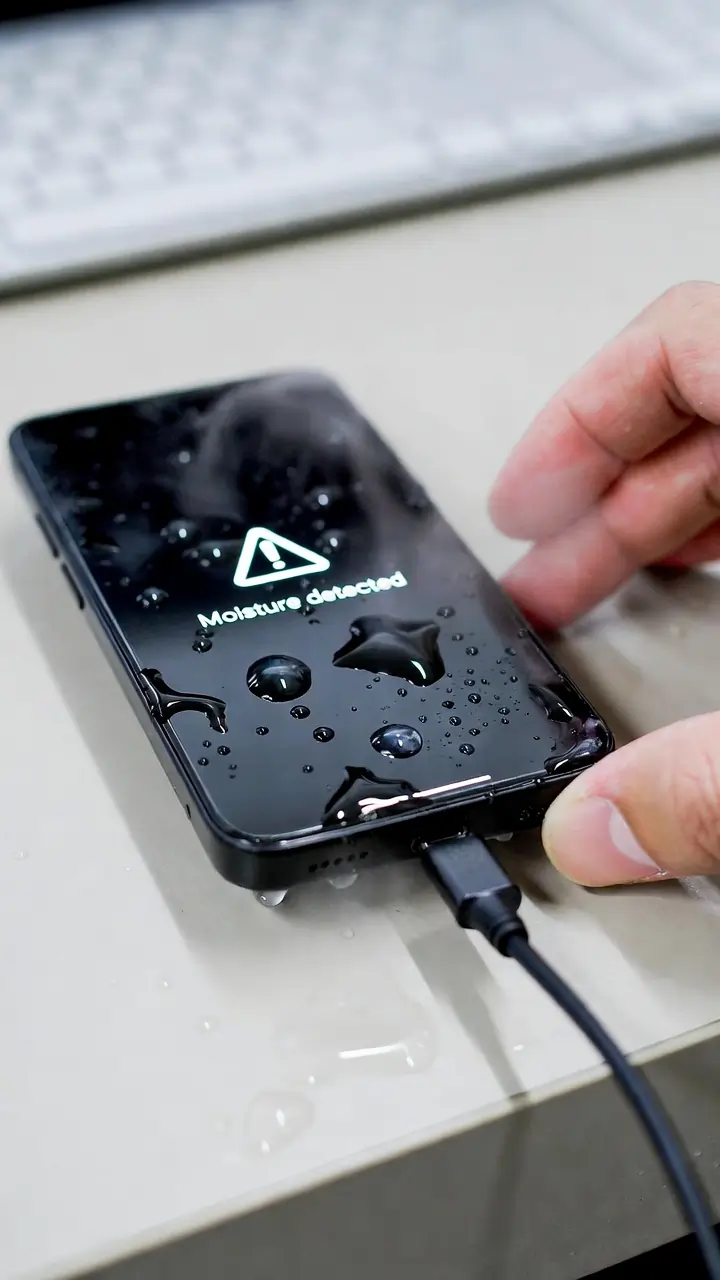
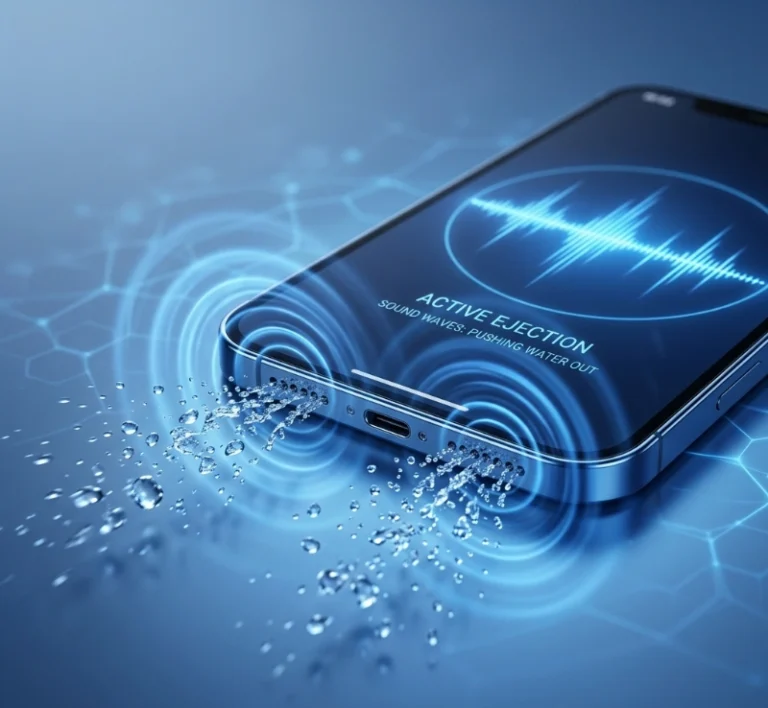
If your phone was recently exposed to water, trapped moisture inside the charging port or speaker area can sometimes affect internal components. In that case, you may also need to check how to get water out of a charging port.
How to Test Phone Vibration on Android, Samsung, and iPhone
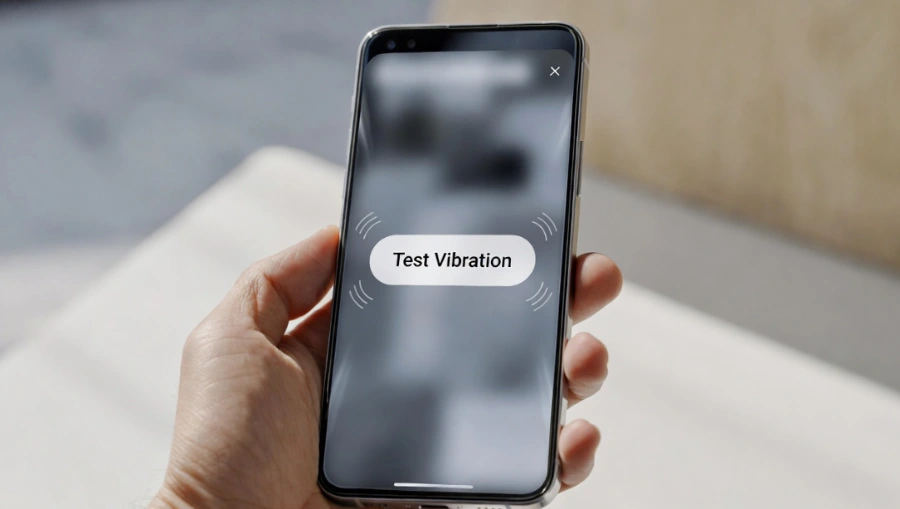
If you’ve checked all settings and vibration still doesn’t work, the next step is to test the vibration motor directly. Besides using built-in diagnostic tools on your device, you can also run a quick online phone vibration test to confirm whether the motor is responding properly.
Samsung Galaxy: Built-In Vibration Test
Samsung Galaxy phones include a built-in hardware diagnostic. Here’s how to use it:
- Open the Phone app
- Dial *#0*#
- Tap Vibration
The phone should buzz immediately. If nothing happens, the vibration motor may be physically damaged.
iPhone: Haptic Engine Test
On iPhone, go to Settings > Sounds & Haptics and slowly drag any volume slider. You should feel a short vibration pulse with each movement. If you feel nothing, the taptic engine may need professional service.
You can also go to Settings > Accessibility > Touch > Haptic Touch and adjust the slider there to test haptic response.
Stock Android: Diagnostic Test
Android devices vary by manufacturer. Many support dialer codes or have diagnostic menus:
- Go to Settings > About Phone > Diagnostics (available on some Pixel and OEM devices)
- Try dialing *#*#4636#*#* for a testing menu on some Android phones
- Third-party apps like Phone Doctor Plus can also run a vibration motor test
If the motor fails every test, the device likely needs a hardware repair.
Tips for Using Vibration Mode Effectively
- Set vibration for calls only to save battery while staying reachable.
- Use custom vibration patterns for different contacts on iPhone, so you know who’s calling without looking.
- Disable touch haptics if you find constant tapping feedback distracting — it won’t affect call or notification vibration.
- Check DND schedules if vibration seems to stop at certain times. Do Not Disturb may be silently switching on.
- Lower vibration intensity on Android if your phone buzzes too loudly on hard surfaces.
- Re-check settings after every OS update — major software updates occasionally reset sound and vibration preferences.
Use these tips alongside the steps above — together they cover how to make your phone vibrate exactly the way you need it.
Android vs iPhone Vibration Settings: Quick Comparison
| Feature | Android | Samsung Galaxy | iPhone |
|---|---|---|---|
| Vibrate mode toggle | Volume buttons or Settings | Quick panel or Settings | Ring/Silent switch |
| Vibration for calls | Settings > Sound & Vibration | Settings > Sounds and Vibration | Settings > Sounds & Haptics |
| Vibration for notifications | Per-app in Settings > Apps | Per-app in Settings > Apps | Per-app in Settings > Notifications |
| Custom vibration patterns | Limited (Samsung has presets) | Yes, per-contact patterns | Yes, fully custom tap patterns |
| Vibration intensity control | Yes (Android 12+) | Yes, with sliders | No direct control |
| Hardware test method | Dialer code (varies) | *#0*# dialer code | Drag slider in Sounds & Haptics |
Frequently Asked Questions
Final Thoughts
Getting your phone to vibrate correctly is almost always a settings issue. Most problems are solved by checking Sound & Vibration settings, making sure Do Not Disturb is off, or reviewing individual app notification preferences. For hardware issues, use your phone’s built-in diagnostics first before seeking repair.
Whether you’re using Android, Samsung Galaxy, or iPhone, the steps above give you everything you need to enable vibration mode, fix phone vibration not working, and customize the experience to fit your daily life. If one step doesn’t solve it, work through the troubleshooting section — it covers every common scenario from software bugs to motor failure.