How to Get Water Out of Charging Port Fast (iPhone & Android)
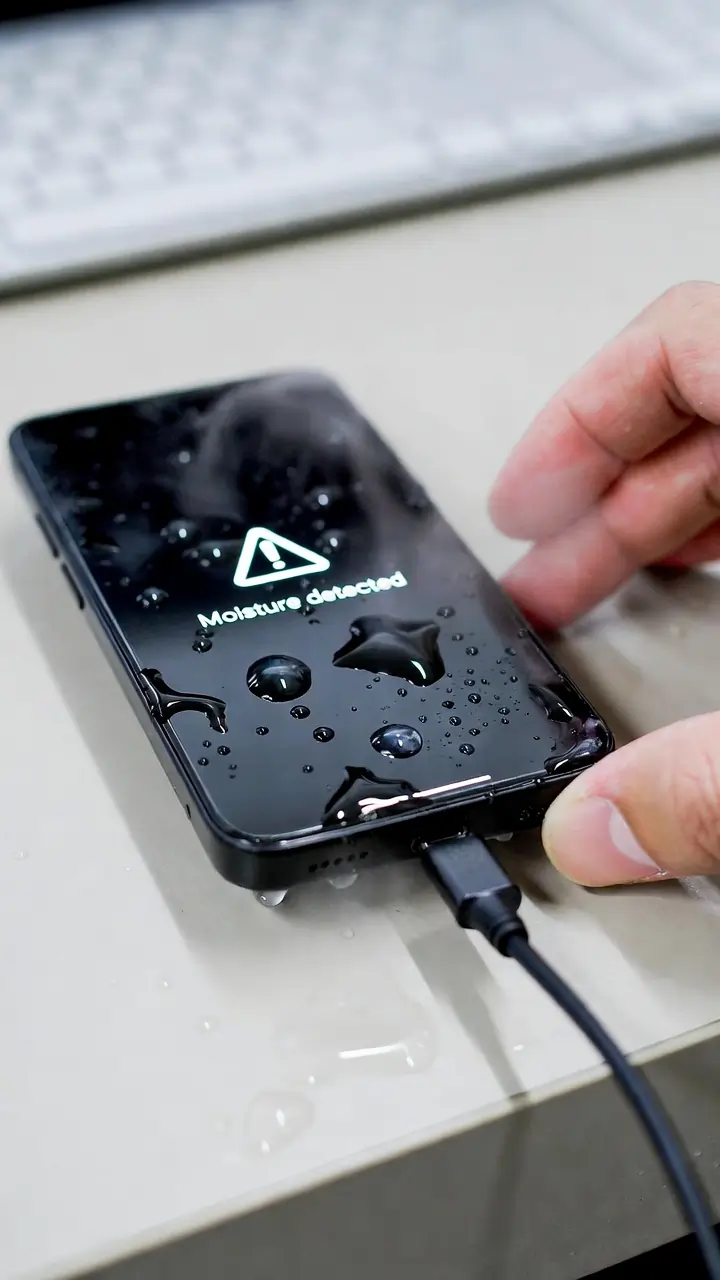
If your charging port gets wet, turn off your phone immediately to stop electrical current from flowing. Disconnect the charger and remove any cable from the USB-C port or Lightning connector right away. To understand how to get water out of charging port safely, hold the phone with the port facing downward so gravity can pull the moisture away from the electrical contacts.
After that, allow gentle airflow from a fan or your breath to help the charging pins dry naturally. Wait at least 4 to 24 hours before plugging the phone back in, depending on how much water entered. Giving it proper time to dry helps prevent short circuits and corrosion inside the port.
Here are the immediate steps in order:
- Turn the phone off
- Unplug the charger
- Keep the port facing downward
- Allow airflow
- Wait before charging
Why do phones stop charging when wet
Moisture connects the electrical contacts inside the charging port. The phone detects the short circuit risk from that connection. It disables charging to protect the battery and the charging controller from damage.
What Does Water in a Charging Port Mean?
Liquid reaching the tiny electrical contacts inside the port starts trouble fast. Your phone usually detects this right away and turns off charging to protect itself. That block stops a short circuit from happening instantly and keeps corrosion from starting on the pins.
Can I Charge My Phone If Water Is in the Charging Port?
Plugging in the charger while water is still present risks serious harm to the contacts. Water connects the charging pins and lets electricity jump between them where it should not. Phones have short-circuit protection and moisture sensors that stop charging and show a warning for good reason. If you ignore the warning, electrolysis begins, and corrosion spreads across the contacts quickly.
What Happens When Water Gets Inside a Charging Port
Moisture causes real trouble fast once it reaches the charging port. It often comes from rain, bathroom steam, a sink splash, a sweaty pocket, or even a wet charging cable. The moisture touches the electrical contact pins and starts the damage process.
How Charging Pins Carry Power
Small metal contacts sit inside the USB-C port or Lightning connector. They carry power from the cable to the battery when everything stays dry. Water bridges those pins and creates an unwanted path for current.
Why Phones Show Moisture or Liquid Warning
Built-in moisture sensors check resistance between the pins. Water drops that cause resistance and trigger the moisture detected error or liquid detection warning. The phone disables charging to avoid worse problems.
Why Charging a Wet Phone Causes Corrosion
Sending current through wet pins triggers electrolysis right away. That process breaks water apart and leaves deposits on the metal. Corrosion builds up and blocks the contacts, while oxidation makes things worse. You end up with a loose charging cable, charging only at certain angles, slow charging, random disconnects, or the warning coming back.
Now that you understand what goes wrong, act fast in the first few minutes to limit the damage.
First 5 Minutes: What You Should Do Immediately
Act quickly to prevent short circuit damage and corrosion inside the charging port.
Turn the Phone Off
Power off immediately to stop electrical current reaching the battery and internal electrical contacts.
Disconnect Charger & Accessories
Remove any cable from the USB-C port or Lightning connector. A connected charger can cause a short circuit.
Keep the Port Facing Down
Hold the phone downward so gravity pulls moisture away from the charging pins and contact points.
Allow Airflow
Place the device in a ventilated area. Gentle airflow helps dry the charging port and prevents corrosion.
Step-by-Step: How to Get Water Out of Charging Port Safely
Go through these methods one at a time. Each one helps get moisture out safely.
Gravity Drain Method
Keep the charging port facing down for the first 10-15 minutes. Gravity pulls loose water droplets out naturally. This clears water from the charging pins without pushing anything deeper.
Gentle Tap Method
Tap the phone lightly against your palm 5-10 times with the port still down. Gentle taps break the surface tension holding drops to the pins. Trapped moisture then has a chance to drain.
Airflow Drying Method
Blow gentle room-temperature air into the port with your mouth or a fan. Stay far enough back so you do not force water deeper. Airflow speeds up evaporation from the electrical contacts.
Using Sound and Vibration to Push Water Out
Tiny drops sometimes cling tightly and require extra help to release. These methods help remove moisture when the port stays wet.
Why Water Gets Trapped
Surface tension makes tiny drops stick to the charging pins. They hide in tight spaces and ignore gravity alone.
How Water Eject Sound Works
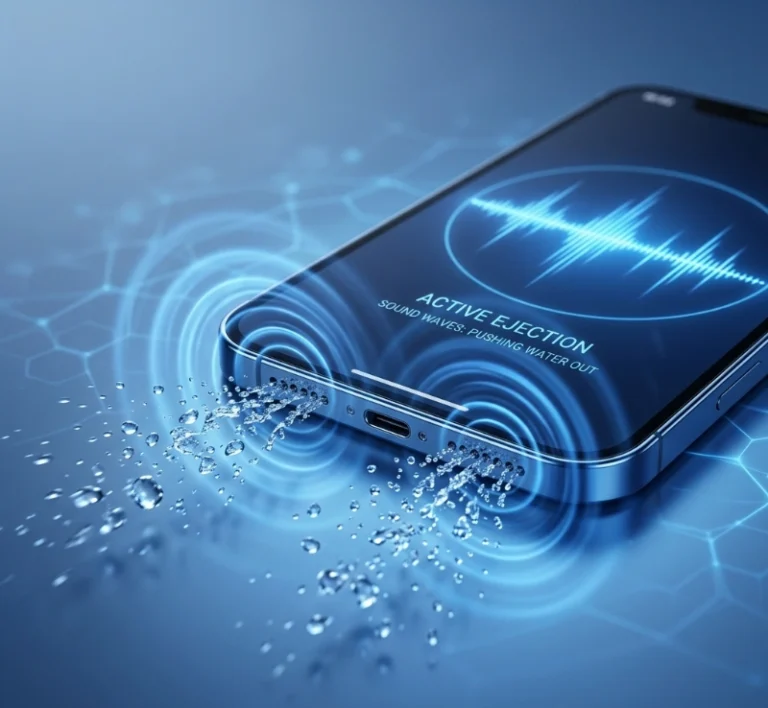
Low-frequency sound waves vibrate the port area. Those vibrations shake water loose from the electrical contacts. Drops fall out once the port faces down.
Safe Use of a Water Eject Tool
Play a water eject sound at medium volume for 1–2 minutes. Look up “water eject sound 165Hz” online and play it near the port. Keep the port facing down while the device is running. Repeat once or twice if needed. The vibration is safe and boosts evaporation.
Avoid common mistakes that can exacerbate the situation.
What Not To Do
A few things people try actually cause more damage.
Heat Damage
Skip the hair dryer, oven, or any heat. Heat drives water deeper and can warp plastic or melt parts.
Rice Myth
Rice does not pull moisture out well. It usually leaves dust or starch particles that create new blockages.
Inserting Objects
Never stick a toothpick, paperclip, or swab inside. You risk bending pins or jamming debris further in.
Compressed Air Risks
Strong compressed air from cans can force water past the seals into the phone body.
Different phones handle warnings in slightly different ways.
How Do You Fix Liquid Detected on an iPhone?
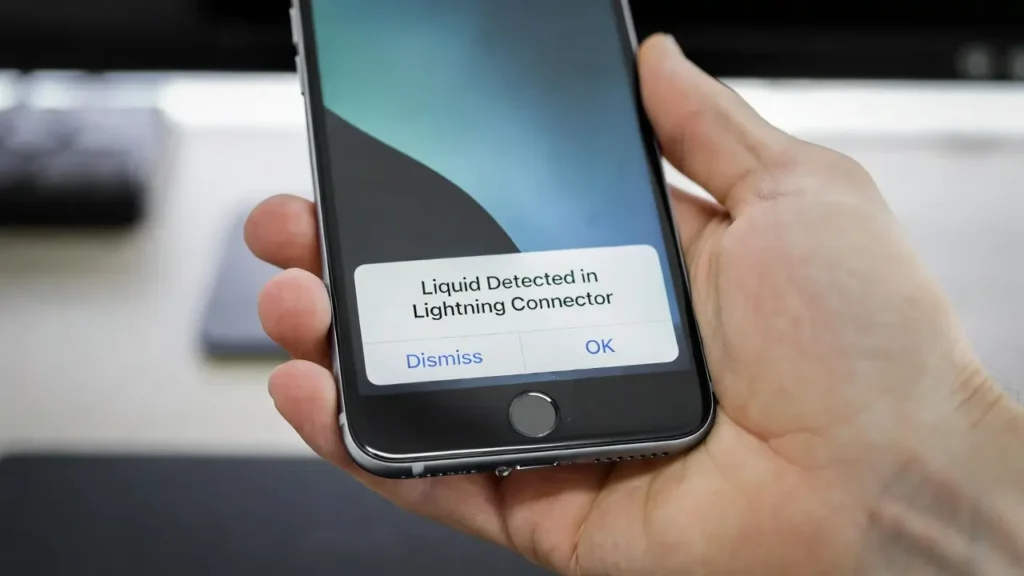
When you see “Liquid Detected in Lightning Connector” or a USB-C warning on an iPhone, unplug the cable first. Tap the phone gently with the port down to loosen drops. Set it in a dry place with airflow. Wait at least 30 minutes before you try again. If the alert stays, give it up to 24 hours. Wireless charging works as a temporary option if your model supports it.
Apple also recommends leaving the Lightning connector unplugged and allowing it to dry naturally before charging again.
How Do You Fix Moisture Detected on a Samsung Android?
If a Samsung phone shows the moisture detected message or water drop icon, unplug the charger right away. Shake the phone gently 5-10 times with the port facing down. Wipe the outside with a dry cloth. Wait 1-2 hours for fresh water to evaporate. Rinse the USB-C port with fresh water first if it was salt water or another liquid, then dry longer.
Why Does My Phone Say Moisture Detected, but It Is Dry?
The warning can still show up even after the port seems dry. Old corrosion or oxidation on the pins often keeps the sensor active. Dust or lint between pins lowers resistance too. Clean the port gently with a dry soft brush. Restart and test with another cable. If it will not clear, the moisture sensor might need repair.
What to Do If the Charging Port Is Wet and Not Charging
Only plug in once the moisture warning is completely gone. Plug in a known good cable slowly and check that charging starts normally. Normal speed without errors means the port is dry enough. Add an extra 1-2 hours if you still feel unsure.
How Do You Know If the Charging Port Is Damaged?
Several signs show that corrosion has already reached the port. The cable feels loose or drops out easily. Charging only works at one angle. It starts and stops on its own. A burning smell comes from the port area. Green, white, or bluish residue shows inside. Charging stays very slow, even with a good cable. Those clues point to oxidation or corrosion damaging the electrical contacts and pins.
If the Phone Still Will Not Charge
Look inside for green corrosion or black oxidation on the charging pins. Clean any visible buildup gently with isopropyl alcohol on a cotton swab if your model allows it. Try several chargers and cables to rule out bad ones. If nothing works, corrosion likely caused permanent damage. A repair shop can clean it properly or replace the port.
How Long Does a Wet Charging Port Take to Dry?
Ports with light splashes usually dry in 1-5 hours with good airflow. Rain or sink exposure takes 4-12 hours in most cases. Heavy water entry needs 24 hours or more. High humidity makes everything take longer. Always wait the full time to avoid oxidation on the pins.
How Can You Prevent Water Damage to the Charging Port?
A case with a port cover helps during rain. Dry your hands before plugging in any cable. Skip charging in steamy bathrooms. Check the charging cable for wetness first. Keep the phone out of sweaty pockets during workouts.
If you’re wondering how to get water out of the charging port, the safest method is simply proper drying time and airflow. Most phones are not damaged by water itself-they get damaged when people plug the charger in too early.