How to Turn Off Vibration on iPhone
Your iPhone uses a clever vibration system to alert you about calls, messages, and app notifications even when the silent switch is on. That little buzz is super helpful in loud places, but when you don’t want your pocket humming during a movie or meeting, it’s time to turn it off. The good news?
You can disable vibration in simple steps—either for specific apps, all vibrations, or just temporary silence using Do Not Disturb. I’ve been tweaking iPhone settings for years, and these methods work smoothly across iOS versions and models.
Why Your iPhone Still Vibrates on Silent
Flipping the silent switch only mutes the ringtone and media sounds—it doesn’t stop vibration. That’s by design. Apple wants you to still know when calls or messages come in. But if that buzz is driving you crazy in quiet spaces, you need to go deeper into Settings.
- The silent switch = sound only
- Vibration = independent feature
- Default behavior: vibrates even when muted
Quick Fix with the Silent Switch
The side silent switch is your first line of defense. Slide it down (orange showing) to mute sounds — but remember, vibration stays on by default.
Why Vibration Runs Independently
Apple separates sound and haptic feedback so you never miss important alerts. This is great in noisy environments but annoying in libraries or at at bedtime.
Turn Off Vibration for Specific Alerts
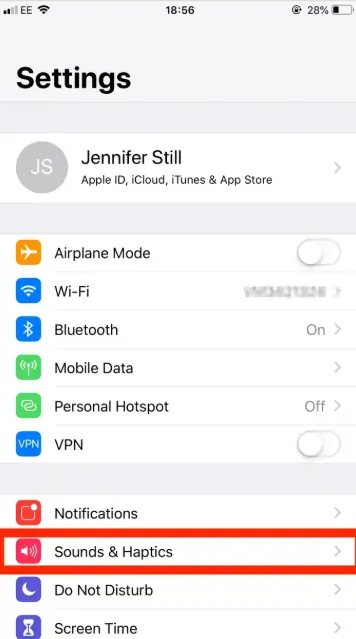
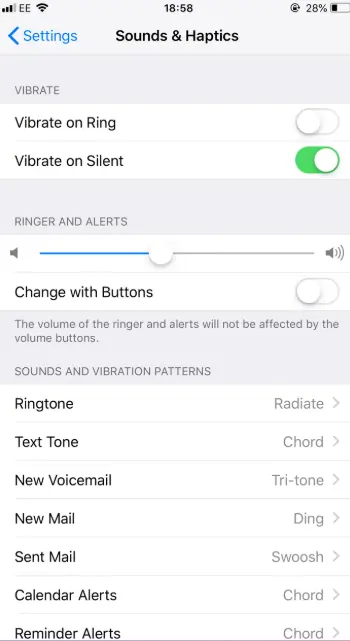
Want to keep vibration for calls but turn it off for text messages? You can customize everything. Go to Settings > Sounds & Haptics, then tap Ringtone or Text Tone. Scroll to the top of the vibration list and select None. You can even pick fun patterns like Synchronized or Rapid for the ones you keep.
- Open Settings
- Tap Sounds & Haptics
- Tap Ringtone → Vibration → None
- Repeat for Text Tone, Mail, Calendar, etc.
This path lets you stay in control—vibrate for important stuff, silence the rest.
Customize Ringtone Vibration
Set the ringtone to a short accent or alert pattern so you feel it without distraction.
Silence Text and App Notifications
Text Tone, email, and social apps often buzz too much. Set them all to None for peace.
Disable All Vibrations in One Tap
If you don’t want any buzz at all—not for apps, calls, or even emergency alerts—use the nuclear option. Go to Settings > Accessibility > Touch, then toggle Vibration off. It works instantly across your entire iPhone.
Note: This turns off vibration for earthquake, tsunami, and other emergency warnings. Only use this if you’re okay missing haptic alerts.
I use this when I’m recording podcasts—total silence, no surprises.
Accessibility Settings Path
Settings > Accessibility > Touch is the master switch. One tap and every vibration stops.
What Gets Disabled
Calls, texts, alarms, and system haptics—everything goes quiet.
Want to turn vibration back on later? Follow this step-by-step guide on how to make a phone vibrate.
Use Do Not Disturb for Temporary Silence
Need peace for a few hours? Do Not Disturb is your friend. Swipe down to Control Center, tap the moon icon, and all vibrations, calls, and alerts go quiet. Set a schedule (like 10 PM to 7 AM) or trigger it by location.
| Mode | Best For |
|---|---|
| Do Not Disturb | Sleeping, meetings |
| Focus Modes | Work, gym, driving |
| Allow exceptions | VIP calls only |
It auto-reenables when done—no need to remember.
Schedule Do Not Disturb
Go to Settings > Focus > Do Not Disturb, then set a bedtime or work hours.
Focus Modes for Smart Control
Create custom Focus Modes for the gym, driving, or reading—each can block vibration differently.
Reenable Vibration Anytime
Changed your mind? Just go back and toggle Vibration on in Accessibility or pick a pattern in Sounds & Haptics. Your iPhone remembers your previous settings, so re-enabling them takes just a tap.
- Accessibility → Touch → Vibration → On
- Or change per alert in Sounds & Haptics
I flip it back on before travel—vibration helps me know I didn’t miss a flight alert.
Restore Default Patterns
Apple’s built-in Synchronized, Heartbeat, or SOS patterns are ready to use.
Test After Reenabling
Call yourself or send a test text to confirm the buzz is back.
Works on all iOS Versions and iPhone models.
These steps are rock-solid on iOS 15, 16, 17, and beyond. Whether you’re rocking an iPhone SE, 14 Pro, or the latest model, the path stays the same. No jailbreak, no third-party tools—just native Apple settings.
- Tested on all models
- Updates don’t break the flow
- Changes apply instantly
iOS 15 and 16 Users
Same settings layout—no changes needed.
iPhone 13, 14, 15 Series
The haptic engine is stronger, but the control is identical.
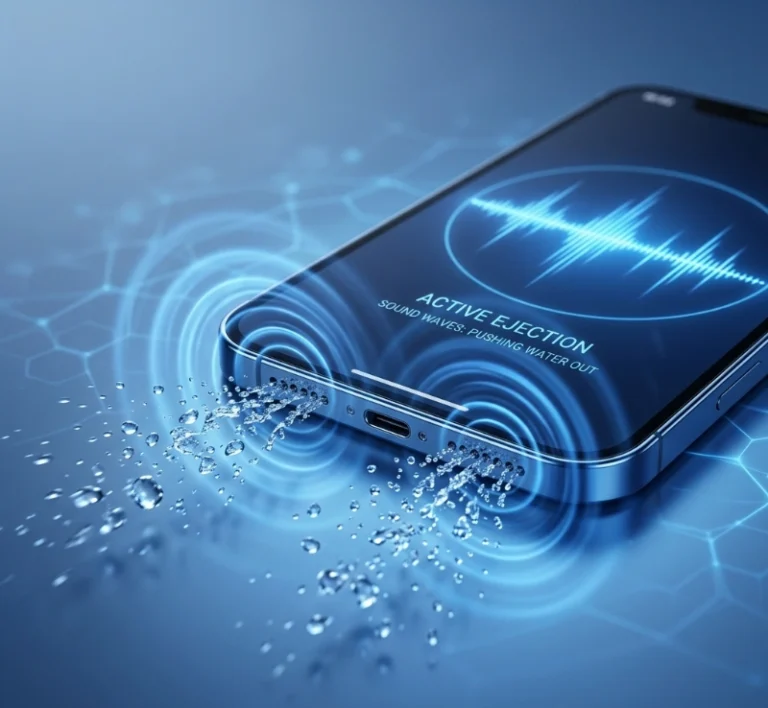
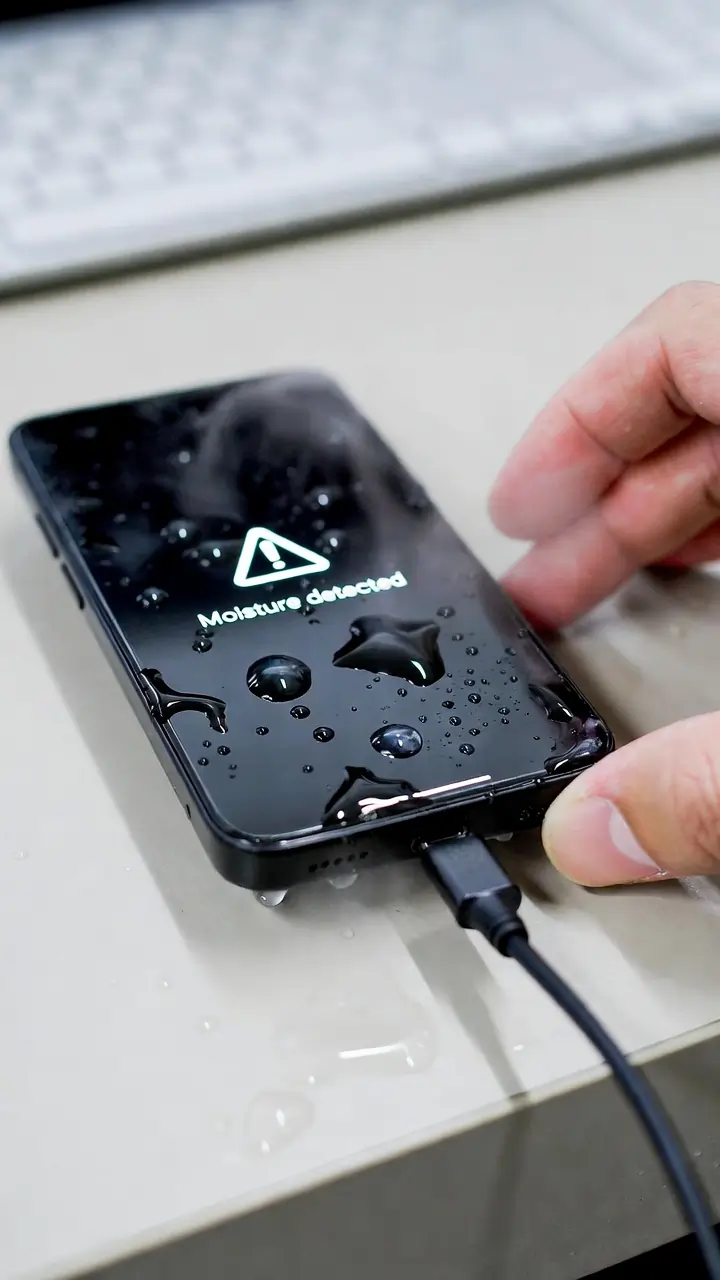
Helpful Tip: If your iPhone ever gets wet and the speaker sounds muffled, just open this free speaker cleaner—it plays a quick tone and ejects water and dust in seconds. Saved my phone more than once!
Keep Emergency Alerts in Mind
Before you disable all vibrations, keep this in mind: emergency warnings like earthquake or tsunami alerts use vibration to grab attention. If you live in a risk zone, consider customizing only—turn off vibration for apps, and keep it for government alerts.
You can always change it later. Full control, no stress.
Government Alert Settings
Check Settings > Notifications > Government Alerts—some can’t be silenced.
Balance Safety and Silence
I keep emergency vibration on but silence social apps.
Pro Tips from a Daily iPhone Power User
Here’s what I do:
- Ringtone vibration = Accent (short buzz)
- Text Tone = None (too chatty)
- Do Not Disturb from 11 PM–7 AM
- Focus mode for gym: vibration off, music on
Little tweaks like these make your iPhone feel truly yours.
By the way, Apple’s official guide on this is super clear—here’s the exact support page that shows both methods step-by-step.
My Favorite Combo
Do Not Disturb at night + Accessibility off during videos = zero distractions.
Save Time with Shortcuts
Create a shortcut to toggle Vibration with Siri—say “Silent Mode Max,” and it’s done.