
How to Remove Water from iPhone Speaker (Step-by-Step Guide)

Water trapped in your iPhone speaker can cause muffled sound, low volume, or distorted audio. Even a small amount of moisture inside the speaker can affect sound clarity and performance.

A sound-based cleaning method uses specific frequencies to push water out through vibrations, helping restore clear audio without opening the device or using external tools.

If you want a faster solution, you can use our Fix My Speaker tool to remove water from your speaker instantly.

In this guide, you’ll learn how to safely remove water from your iPhone speaker and restore clear, balanced sound..
iPhone water removal sound to clean water from speaker grill

If your iPhone speaker sounds low or muffled after getting wet, there’s likely water or dust stuck inside. This can make calls hard to hear and music sound broken. Our tool helps you fix that in seconds using sound waves and safe vibration.

Tap the Water Ejection button to play a sound that pushes water out of your speaker. Use Dust Removal if dirt is blocking your speaker grill. For stronger cleaning, try Deep Vibration to shake out hidden moisture and particles.

You don’t need rice, apps, or tools—just press a button and turn your volume all the way up. This is the fastest and safest way to remove water from your iPhone speaker at home. Works with most iPhone models and helps restore clear sound fast.

What to Do If You Drop Your iPhone in Water: Step-by-Step Guide

Dropped your iPhone in water? Don’t stress. Just follow these simple steps to stop any damage before it gets worse.

  • Take It Out Quickly
    The faster you grab your iPhone from the water, the better chance you have to protect the speaker and charging port.
  • Turn It Off Immediately
    Hold the power button and slide to power off. This helps prevent short circuits from happening inside.
  • Remove the Case and Accessories
    Take off any case, screen protector, or cables. These can trap water and slow down the drying process.
  • Dry It Gently
    Use a soft lint-free cloth to wipe the screen, buttons, and charging port. Don’t press too hard or push water further in.
  • Eject the SIM Card
    Use a paperclip or SIM tool to pop out the SIM tray. Water can hide inside that slot, too.
  • Don’t Shake or Blow Into It
    Shaking or blowing air can push water deeper into the speaker or mic. It does more harm than good.
  • Avoid Heat or Hairdryers
    Never use a hairdryer or compressed air. Too much heat or pressure can damage tiny parts inside your phone.
  • Let It Air Dry
    Place your iPhone in a cool, dry spot with airflow. No sunlight, no heaters—just let it dry naturally.
  • Wait Before Charging
    Don’t charge it for at least 24 hours. Plugging in too early can short the circuits and ruin your device.
  • Expert Advice: For detailed guidance on drying a wet phone without causing damage, check out this trusted step-by-step guide.

Still hearing a muffled sound? Tap the Play button above to use a sound to quickly and safely get water out of your phone’s speakers.

How to Remove Water from iPhone Speaker Using Sound (No App Needed)

If your iPhone speaker sounds weird or muffled after getting wet, don’t worry—it happens a lot. The good news is, you can fix it at home without needing any tools or repairs.

1

Give It a Gentle Shake
Hold your iPhone with the speaker facing down and shake it gently. This helps push water drops out of the speaker holes.

2

Tap the Sides Lightly
You can also tap the top and sides of your phone to help loosen any water stuck inside the speaker grille. Just don’t go too hard.

3

Use Gravity
Place your iPhone face-down on a flat surface and let gravity do its thing. Leave it there for a few hours to let the water drip out naturally.

4

Try Silica Gel (Not Rice)
Got those little silica gel packets from a shoebox? Put your iPhone in a sealed container with a few of those—they pull out moisture way better than rice.

5

Let It Air Dry
Set your iPhone somewhere cool and breezy. Near a fan is great—just no heat or direct sunlight.

6

Brush the Speaker Gently
You can also gently brush near the mic area. It acts like a light mic cleaner and helps remove moisture from the tiny holes.

7

Check the LCI for Moisture
Look inside the SIM card slot for a red dot—that’s your iPhone’s Liquid Contact Indicator. If it’s red, there’s still water inside.

8

Test the Sound
Play music or test a call to check if the call speaker cleaner steps worked. If it sounds clear, you’re good to go

9

Don’t Plug Anything In Yet
Don’t charge your phone or use headphones until you’re 100% sure it’s dry. Water and electricity don’t mix.

How to Use a Water Ejection App to Fix iPhone Speaker Sound

If your iPhone speaker still sounds muffled after getting wet, don’t worry; there’s an easy fix. You can also try an iPhone speaker-cleaning app that uses sound waves to dislodge trapped water and restore sound quality.

Here’s how to do it step-by-step:

  • Download a Water Ejection App
    Go to the App Store and search for a water ejection app. Pick one with good reviews and install it on your iPhone.
  • Open the app.
    Launch the app you just downloaded. These apps work by vibrating the speaker water using a sound-based cleaning method.
  • Pick the Right Frequency
    Most apps use a 165 Hz iPhone water eject sound to push out trapped moisture quickly and safely. Frequency for you.
  • Turn Up the Volume
    Set your iPhone’s volume to the max. Louder sound means stronger vibrations—this helps remove the water faster.
  • Tap the Play Button
    Hit “Play” in the app to start the water removal sound. This buzzing tone helps vibrate and push out trapped moisture.
  • Hold the Phone Face Down
    Tilt your iPhone so the speaker points down. Gravity helps the sound waves move water out of the speaker holes.
  • Let It Run for a Few Minutes
    Keep the sound playing for 2–3 minutes. You might see tiny drops of water coming out; that’s a good sign!
  • Wipe Away the Water
    Use a clean, lint-free cloth to gently wipe any water off the speaker area. Don’t push too hard.
  • Test Your Speaker
    Play a song or make a quick call to check if the steps to clean my speaker worked. If the sound’s clear, you’re good to go.

Pro Tip:
If the top speaker still sounds muffled, try this sound-based ear speaker cleaner to clear hidden moisture.

How to Tell If Water Is Still Inside Your iPhone Speaker

Not sure if your iPhone speaker is dry yet? Here are some super simple ways to find out if there’s still water hiding inside.
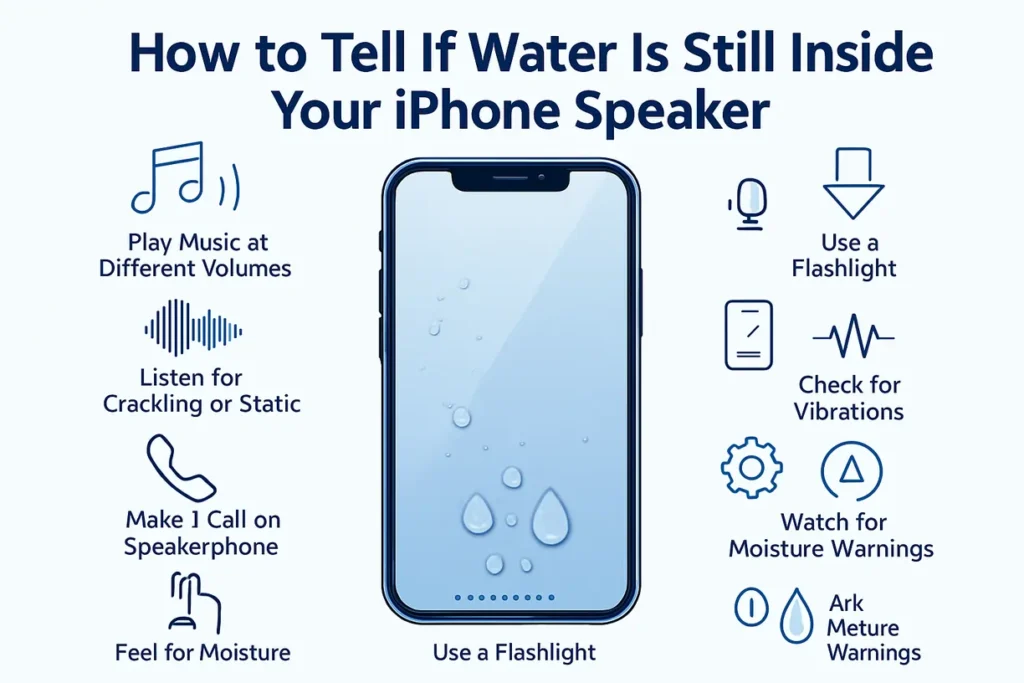
iPhone speaker water detection process
  • Play Music at Different Volumes
    Turn on a song and move the volume up and down. If the sound is muffled or weak, water might still be in the speaker.
  • Listen for Crackling or Static
    Hear any crackling, buzzing, or weird noises? That’s a sign there’s still moisture inside the speaker area.
  • Make a Call on Speakerphone
    Try calling someone using speakerphone. If you can’t hear them clearly—or they say you sound off—your speaker might still be wet.
  • Check for Low Volume
    If the volume feels lower than usual, your iPhone speaker could be blocked by leftover water or droplets.
  • Feel for Moisture
    Gently touch around the speaker holes. If it feels damp or sticky, it’s not fully dry yet.
  • Use a Flashlight
    Shine a flashlight into the speaker grill. Look for tiny water droplets or a wet shine inside the speaker mesh.
  • Check for Vibrations
    Play a tone and place your finger on the speaker. No buzz or weak vibration means water might still be stuck inside.
  • Use a Diagnostic App
    Download a free speaker test app from the App Store. These apps check if your sound is working right—or if something’s still off.
  • Ask Siri for Help
    Say “Hey Siri” and listen to her reply. If she sounds muffled or quiet, water could still be blocking your speaker.
  • Watch for Moisture Warnings
    If your iPhone shows a “Liquid Detected” alert or charging warning, the inside’s still wet; keep drying it.

Top Signs Your iPhone Has Water Damage (And What to Do Next)

Think water might’ve slipped into your iPhone? Look out for these common signs that tell you something’s not right inside your device.

  • Touchscreen Not Working Right
    If your screen freezes, lags, or doesn’t respond to your taps, moisture could be messing with the touchscreen sensors.
  • Muffled or Weird Sound
    When water gets into the speaker or mic, sound during calls or videos may become distorted, crackly, or super quiet.
  • Random Shutoffs or Reboots
    If your iPhone restarts by itself or shuts down without warning, water might be causing short circuits inside.
  • Charging Problems or Battery Drain
    Trouble charging your phone? Or is your battery dying too fast? Moisture in the charging port or battery area can cause that. Some iPhones even show a “Liquid Detected” warning.
  • Foggy Camera Lens
    If your photos look blurry or your lens looks cloudy, there’s probably water trapped near the camera.
  • iPhone Getting Hot
    Overheating could mean internal parts are struggling. Water can mess with how your iPhone cools itself.
  • Corrosion or Color Change
    Look inside the SIM card slot, charging port, or headphone jack. If you see rust or weird discoloration, that’s
  • Red Liquid Contact Indicator (LCI)
    Apple puts LCIs inside the SIM slot. If it’s red, your iPhone definitely got wet.
  • Apps Acting Weird
    If your apps keep crashing or won’t open, water may have damaged the internal circuitry.
  • No Signal or Wi-Fi Drops
    Water in the antenna or related parts can kill your connection to the internet or mobile network.

Do’s and Don’ts If Your iPhone Gets Wet: What Actually Works

If your iPhone gets wet, act fast. The right steps can protect your speaker, charging port, and internal parts from damage.

Do’s:

1

Turn it off
Hold the power button and shut your iPhone down. This helps avoid short circuits.

2

Remove the case and SIM card
Take off the phone case, SIM card, and any charging cable or accessories to let it air out.

3

Wipe it dry
Use a soft cloth to gently dry the screen, buttons, and charging port.

4

Let it air dry
Place your iPhone in a cool, open space with airflow. Let the moisture evaporate on its own.

5

Wait before turning it on
Leave it off for 24 to 48 hours to allow the internal components to dry fully.

Don’ts:

1

Don’t turn it on right away
Using it too soon can cause more water damage.

2

Don’t use heat
Avoid a hair dryer, oven, or microwave. High heat can ruin your battery and circuitry.

3

Don’t shake it
Shaking can push water deeper into the speaker and microphone.

4

Don’t stick things in the port
No cotton swabs, no paper towels. These can leave lint or damage the charging port.

5

Don’t charge it while wet
Plugging in your iPhone while it’s wet can lead to short circuits or permanent damage.

iPhone Speaker Still Not Working After Water Damage? Here’s When to Get Help

If your iPhone speaker still isn’t working right, it might be time to stop guessing and talk to a pro. Here’s when you should consider expert help.

  • Distorted or crackling sound
    If your speaker crackles or sounds off during calls or music, it could be more than just moisture. A deeper hardware issue might need fixing.
  • No sound at all
    If there’s zero sound—even after checking volume settings or restarting your iPhone—you’re likely dealing with a speaker or internal component failure.
  • After water damage
    If the speaker stopped working after your phone got wet, don’t wait. Water inside the speaker can cause long-term damage if not cleaned out properly.
  • Static or interference
    Hearing random buzzing or static during calls or videos? That could mean damage inside the speaker or problems with audio circuits.
  • When software fixes don’t work
    If you’ve tried everything like updating iOS, resetting sound settings, or restarting, but the speaker still isn’t right, a technician should check the hardware.

Take Your iPhone to Apple for Service

If nothing else works, it’s best to take your iPhone to the nearest Apple Store or a certified service center. A trained Apple Genius or repair expert can inspect the device, remove any moisture, and fix problems caused by water damage.

Keep in mind, every iPhone has a water damage indicator. If it’s been triggered, the technician will know—so there’s no point trying to hide it. Just be honest and let the expert check everything properly.

Still not sure? Test your speaker using our speaker sound test tool to check performance.

Conclusion

You’ve now learned how to remove water from your iPhone speaker using sound-emitting apps and safe drying techniques. These steps help improve sound quality and stop further damage before it starts.

If DIY water removers like sound apps don’t fix the issue, a technician can help restore full speaker function.

Frequently Asked Questions

Yes, iPhones have a Liquid Contact Indicator (LCI) that turns red when exposed to water.

No, standard warranties don’t. Only AppleCare+ may cover it under accidental damage.

No, placing your iPhone in rice may introduce dust and starch particles into the ports. Use a lint-free cloth and let it air dry instead.

Your iPhone may show a “Liquid Detected” warning. Don’t charge it. Let it dry fully and check the port with a flashlight before using.